

What feedback collects
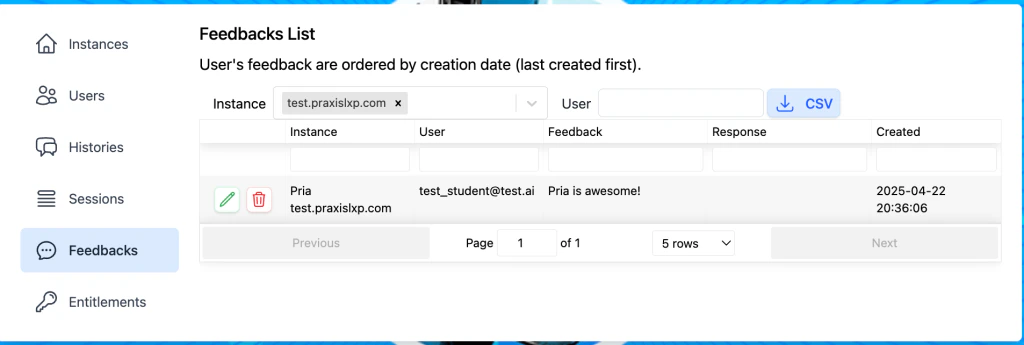
The Feedback page collects written comments users submit through the “Send feedback” form. Each feedback row is associated with the submitting user, the Digital Twin instance, and a timestamp, plus any response you record.Thumbs up / thumbs down reactions on individual AI responses are a separate, per-message signal — they are stored with the conversation and visible in Histories, not on this page.
Where to find it
Sign in as an admin and open Admin → Feedback from the side menu. The page lists every comment for instances you have permission to see, newest first.Filtering and sorting
The filter bar lets you narrow the list to exactly the feedback you need to act on:- Instance — restrict to a single Digital Twin instance
- Account — when you administer multiple instances, scope to a whole account at once
- User search — by email, first name, or last name
- Column filters — filter the list in place by instance, user, or feedback text
Drilling into a feedback row
Click the pencil icon on any row to open the feedback detail panel. You will see:- User — name, email, and account type
- Instance — the Digital Twin instance the feedback is about
- Submitted — exact timestamp
- Feedback — the full text the user submitted, with a one-click copy button
- Response — a text area to record your reply, alongside a Respondent Email field
Responding to feedback
You have several options once you have read a piece of feedback:- Reach out to the user — the panel surfaces the user’s email so you can reply directly. For sensitive or complex issues, a personal email beats anything automated.
- Record your response — save the reply you gave (and the respondent email) on the feedback row, so the team can see which items have been handled.
- Delete — soft-delete when the comment is spam, abusive, or accidentally submitted. Deleted rows are retained but hidden from the default view.
Patterns to look for
Single complaints are noise. The value of feedback is in patterns. Things to watch for:- Sudden drop in ratings — a wave of thumbs-down (visible in Histories) within a few hours usually signals a configuration drift: a new instruction, a model change, or a retrieval source that has gone stale.
- Same complaint, multiple users — three users in a day all reporting “it forgot what we were talking about” is a memory or compaction signal, not three coincidences.
- Model regression — if you switched the instance’s default model recently and negative ratings climbed afterwards, the rollback is your first move.
- Prompt drift — when the Digital Twin starts answering off-topic, the Instructions field is the place to look; small edits sometimes have outsized behavioural effects.
- Topic clusters — if multiple users complain about the same subject (a specific course, policy, or feature), feed that back into your Onboarding Questions or Assistants.
Using feedback to refine Instructions and Assistants
Feedback is most valuable when it changes behaviour. Two tight loops:- Instructions tuning — when feedback consistently shows the Digital Twin missing a constraint (“don’t recommend third-party tools”, “always cite the source”), add a line to the Instructions field in Configuration. Re-test with a fresh conversation.
- Assistant scope refinement — if users keep complaining that the wrong assistant answered their question, tighten the assistant’s description so the dispatcher picks more accurately. See Assistants.
Privacy considerations
Feedback rows always include the submitting user — there is no anonymous channel inside Pria today. Consider the following when reviewing:- Treat comments as personal data. FERPA / GDPR principles apply: don’t paste raw feedback into public channels.
- Identified by default. Users see their own name attached when they submit; they should expect a human to read it.
- Consent for outreach. If you plan to email a user about their feedback, it is courteous to keep the reply scoped to the issue they raised.
- Cross-instance exposure. Admins of an instance see feedback for that instance only. Account-level admins can see across the account.
Bulk export for analysis
For longitudinal analysis, export the visible feedback set as CSV from the page toolbar. The export includes the comment, any recorded response, user, instance, and timestamp. Common downstream uses:- Pivot tables in a spreadsheet (positive vs negative split by week)
- Sentiment classification in your analytics pipeline
- Sharing a redacted slice with the product team during weekly reviews
Related
- Histories — the underlying conversation each feedback row points back to
- Sessions — who was active when the feedback arrived
- Configuration — where you tune the Instructions feedback most often calls out
- Assistants — refining assistant scope based on feedback patterns
- Entitlements — the
feedbacks.list,feedbacks.edit, andfeedbacks.deletepermissions that gate this page