

Integration Note: When your Digital Twin is integrated through Canvas or the SDK, users are automatically signed in and registered.
Who you can manage
What you can do to a person depends on your entitlements on the Digital Twin they are using right now:People using their personal Pria. Someone who is not inside any Digital Twin right now opens for you only if they hold an active membership of their own on your Digital Twin. An address you imported does not count until that person has signed in and used your Digital Twin. Otherwise Pria shows “This account has not joined your Digital Twin.” — and their trusted devices, memberships and personal memories stay closed to you.
The Users list
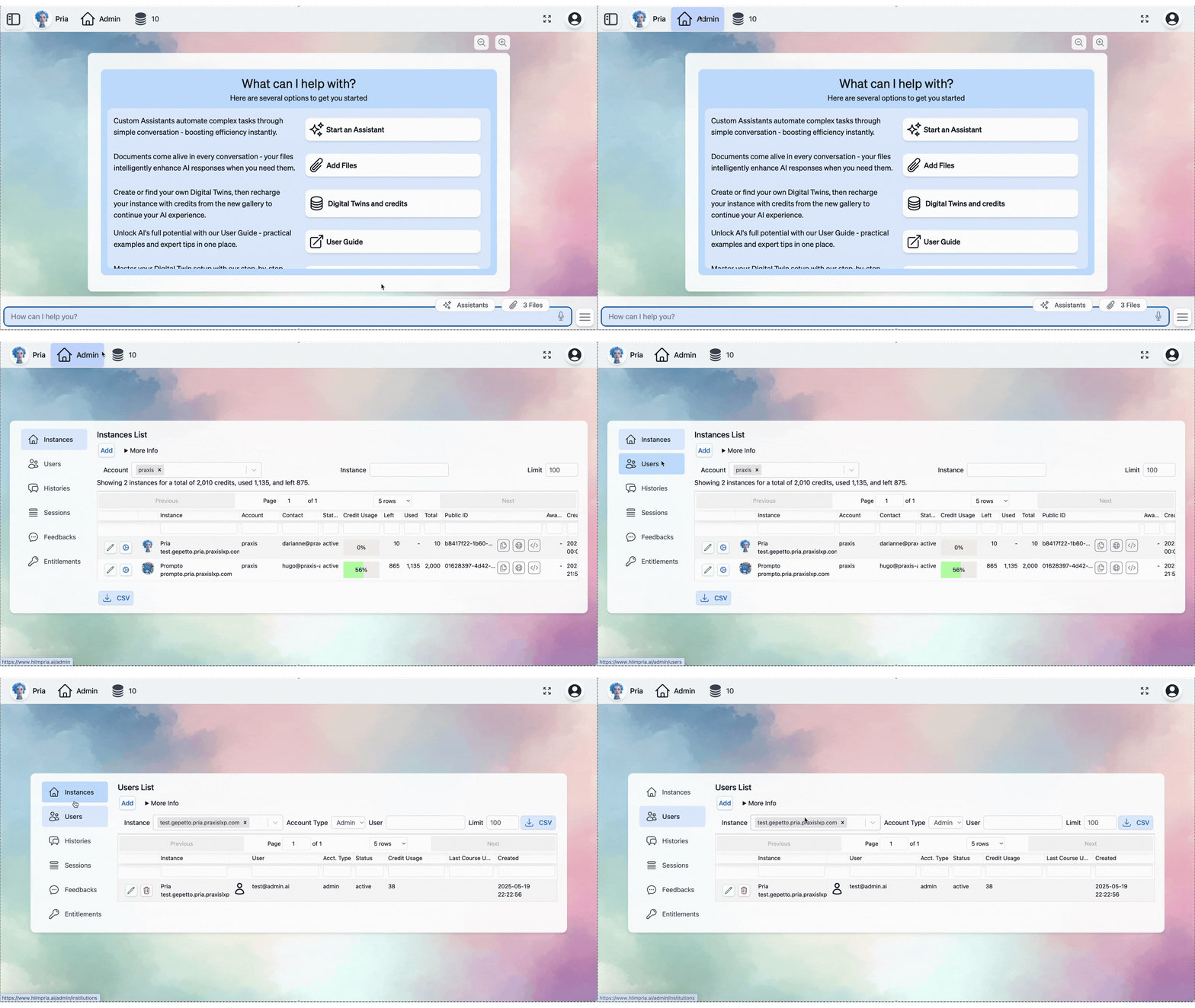
Below them are three tabs — Users, Statistics and Credit Cap.
The Users tab
- All · Active · Inactive — filters by the person’s status. The Studio UI adds All · Has activity, which keeps only people who have used Pria at least once.
- Import — creates accounts from a list of email addresses (see Import people).
- Columns — chooses the columns; the export follows the same choice.
- Export CSV — downloads the list for your current selectors.
users.delete for that Digital Twin, Delete.
How recently someone used Pria. The Last Activity column counts every way of using Pria — chat, voice, meetings, uploads, Slack and more; signing in or opening a page does not count. Its dot is green up to 30 days, yellow from 31 days to 6 months, and red after 6 months; someone who never used Pria reads “Never used”. Under an active person’s status, a quiet spell of more than 30 days shows as “35 days ago”; after 6 months it becomes a warning reading “idle 6+ months”.
The Statistics tab
Usage over a date range you choose, summarised Daily, Weekly or Monthly, with its own column chooser and CSV export. With no range set it shows a recent default window and says so. Very large queries are capped at 5,000 rows, or may time out — narrow the date range, the Digital Twin or the search when that happens.The Credit Cap tab
How credit caps are landing across the Digital Twins you can see: how many are capped, how many members they hold, how many have reached their cap, and charts of the same over time. Use it to tell whether a cap is doing its job or quietly blocking people.Editing a person
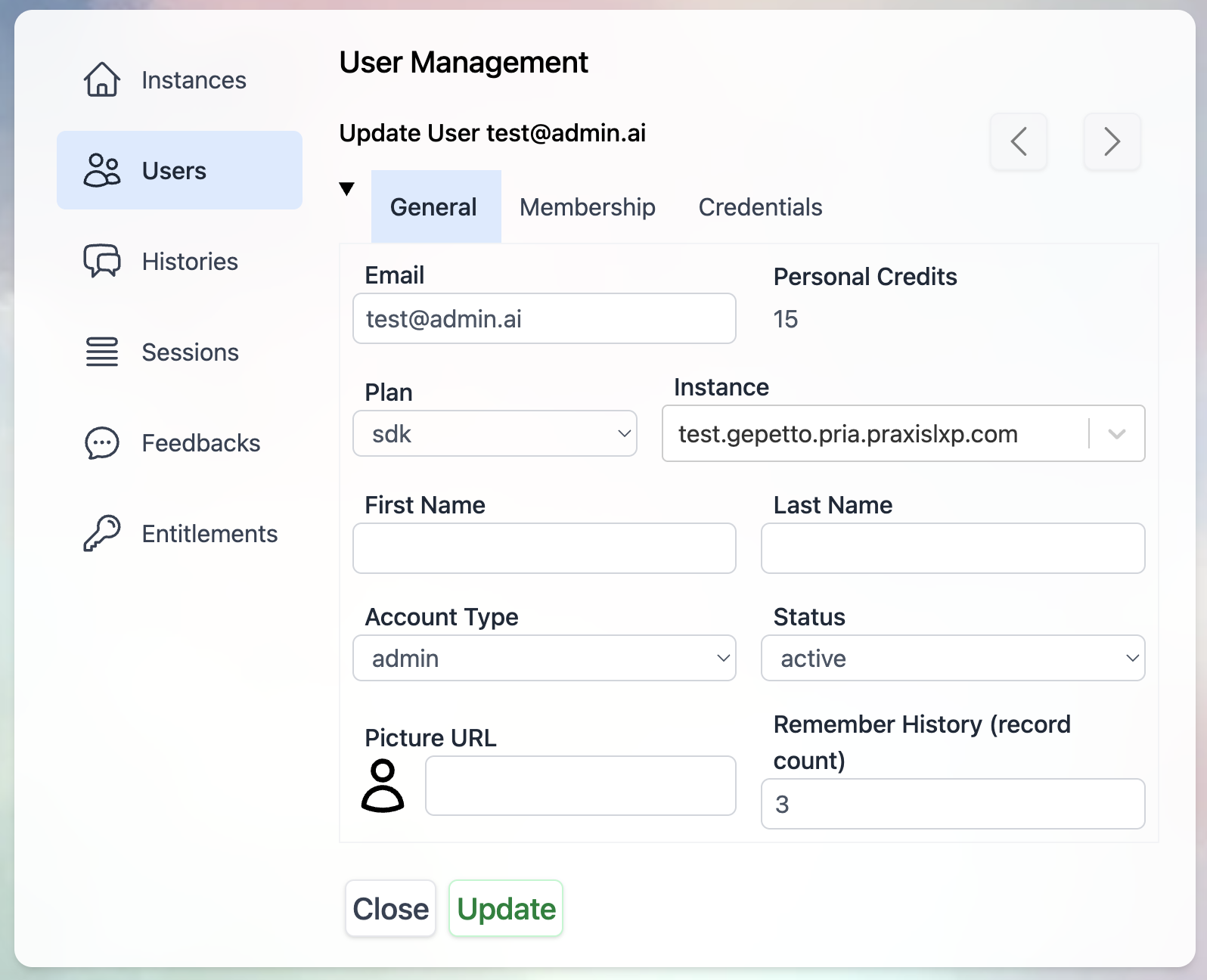
Click a person to open their record. The tabs mirror the person’s own profile:- General
- Personalization
- Knowledge
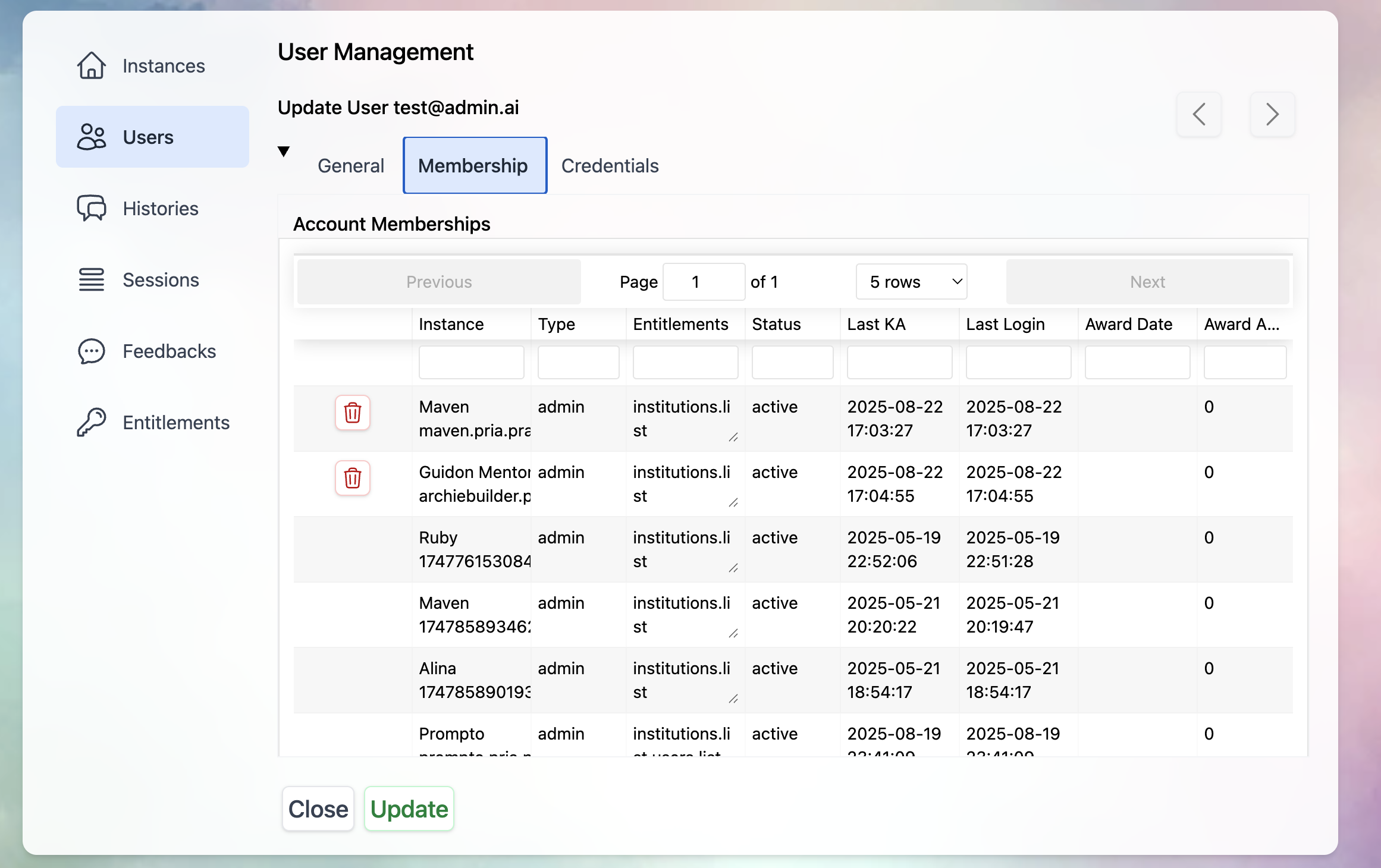
- Membership
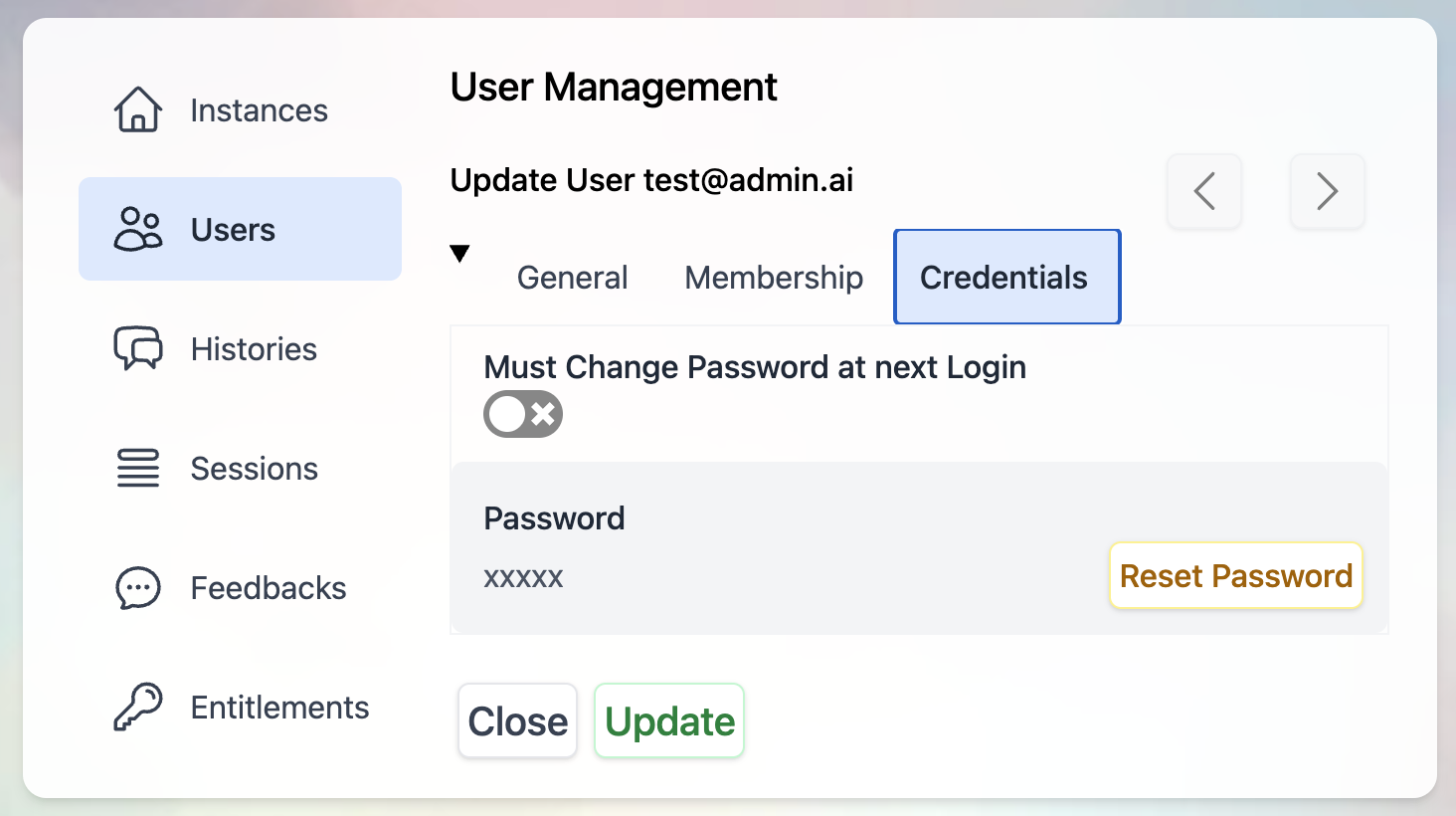
- Security
- Memory
- Usage
- The picture — click it to upload a new one, or paste an address in Picture URL (override).
- Allow new UI access — lets the person switch to the Studio UI.
- Show the welcome message at the next visit — shows the personal Pria welcome again the next time they open their personal Pria, if they have no Digital Twin.
- Email, First Name, Last Name, Account Type (user or admin) and Status (active or inactive).
-
Personal Credits and Plan are shown read-only. For a credit grant, contact the Praxis AI team at humans@praxis-ai.com.
Saving changes only what you edited. If the person changed a setting after you opened their record — turned on two-step verification, picked RAG, bought credits — your save keeps their change. Knowledge, Security, Memory and Usage appear once the account exists; while you create someone you see General, Personalization, Membership and a Password & MFA section.
Actions on one person
Make someone inactive
Make someone inactive
Set Status to inactive. They are blocked from chat, voice and tools at once, and everything they have is kept. To block someone on one Digital Twin only, change their membership status instead — see Membership Status Enforcement.
Delete a person
Delete a person
Deleting closes the account and erases the person’s private files first. If that fails, nothing else changes and you can try again. The account then disappears from the list and its email address is freed, so the person can be invited again later as a new account.The confirmation shows exactly who you are deleting — name, email, Digital Twin, account type and creation date. Deleting several at once shows the count and asks again.
Merge two accounts
Merge two accounts
When the same person has two accounts — a personal sign-up and a later invitation, say — Merge… folds one into the other.The removed account is gone for good.
1
Open the account to remove
Merge always runs from the account that will disappear.
2
Find the account to keep
Search by email or name and pick it.
3
Read the preview
Pria lists what would move, item by item — nothing has moved yet. It flags memberships both accounts share (they become one) and the case where both have their own billing record, which a merge does not reconcile.
4
Type the email to confirm
Merge & delete source stays disabled until you type the email of the account being removed.
Act As (see Pria as this person)
Act As (see Pria as this person)
Act As… in the record’s footer switches your session to the person for up to one hour, after you type a reason. You see exactly what they see; admin pages are closed until you select Stop on the Acting as pill. Every session is audit-logged. Rules and details: Act As.
Adding people
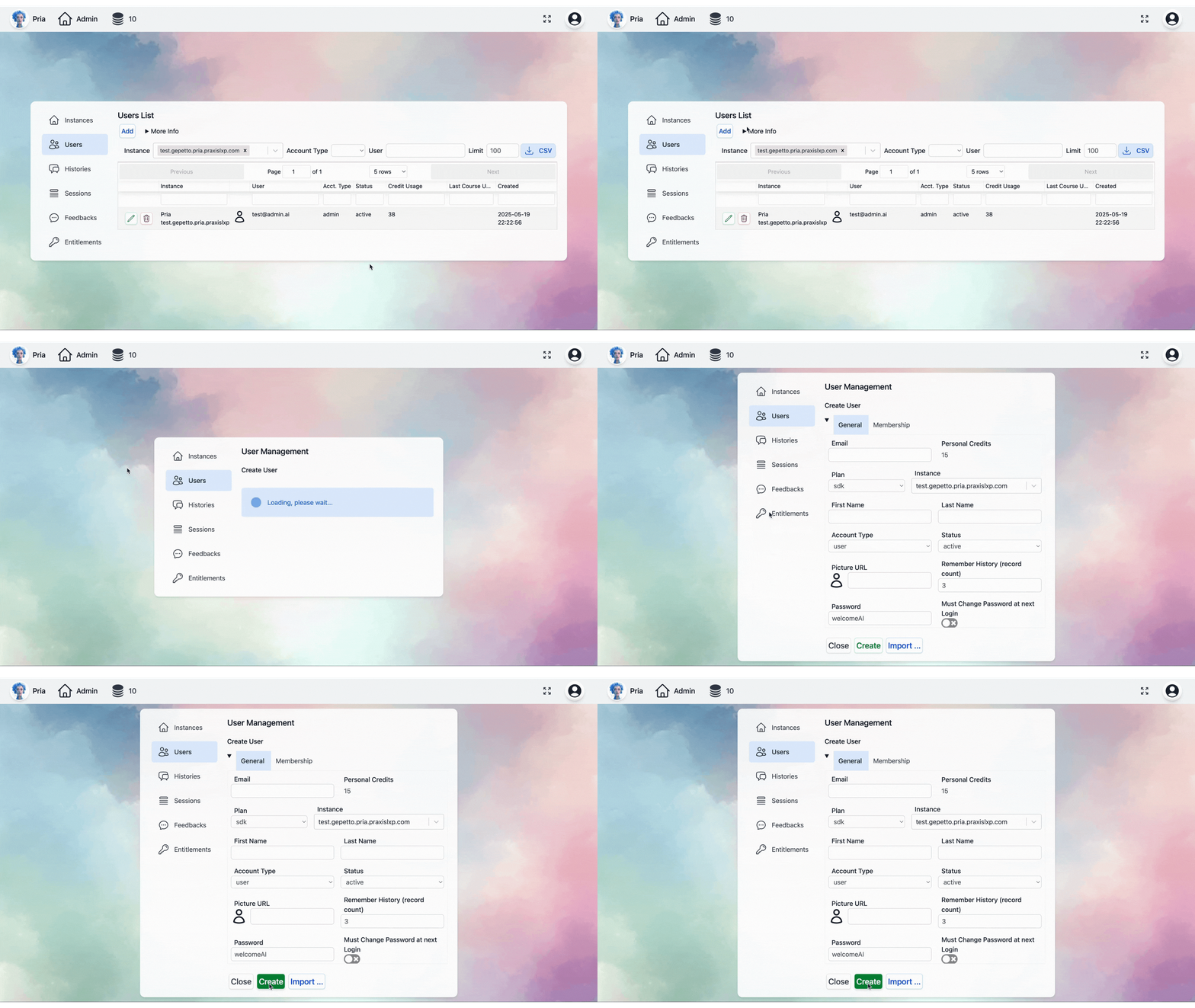
Add one person
1
Open the form
In Users, select Add (Add User in the Studio UI).
2
Fill it in
- Profile Picture — click the picture to upload one, or use Picture URL (override).
- Email, First Name, Last Name, Account Type (user or admin) and Status (active to let them sign in now).
- Instance — the Digital Twin they join. It starts on the Digital Twin you are working in.
- Password & MFA — type a Password or select Generate; Must change password at next sign-in; Skip the password change on SSO sign-ins; Reset password with SSO; Require email MFA for this user.
3
Create, then tell them
Select Create, then let the person know their account is ready and how to sign in.
Import people
Import creates accounts from a list of email addresses. Account type, status and password are set once for the whole batch.You paste emails, not a spreadsheet. There is no header row and no name column. Names come from each address —
john.doe@example.com becomes John Doe — or write one out as "John Doe" <john.doe@example.com>.1
Open Import
Select Import above the users table.
2
Give the addresses
Type or paste them into Emails (comma separated), or load a
.txt or .csv file with the upload button. Example Emails lists every accepted form.3
Choose what everyone gets
- Account Type —
useroradmin - Status —
activeorinactive - Instance — the Digital Twin they join (starts on yours)
- Password — one starting password; Generate makes a strong one
- Must change password at next sign-in (on by default) — they choose their own password the first time they sign in with email and password
- Skip the password change on SSO sign-ins (on by default) — people who sign in with Google, Microsoft, Facebook, Apple or a learning platform are not asked
4
Run it
A progress bar tracks the batch. Addresses that failed are listed at the end so you can fix and re-run just those.
Account types
- Admin
- User
Can open the admin console for the Digital Twins they belong to. What they can do there comes from their entitlements on each Digital Twin — managing people, editing settings, reading histories, billing — each granted separately. That is why two admins can see different things.
Accounts that created their own Digital Twin. A person who registered on their own can upgrade once their personal Pria has answered 5 questions; their account becomes admin and can create up to 3 Digital Twins (see Create a Digital Twin). The admins such an account adds or promotes can manage its Digital Twins but cannot create Digital Twins of their own.
Related
- Entitlements — per-Digital-Twin permissions and membership status
- MFA — two-step verification and recovery
- Sessions — a person’s signed-in devices
- Praxis Shield — security incidents and suspending from there
- Memory & Act As — memory inspection and impersonation in detail