

Managing assistants requires the
assistants.list, assistants.add, assistants.edit, or assistants.delete entitlements. See Entitlements for details.Assistant List
The Assistants tab in the Admin dashboard shows all assistants for your institution.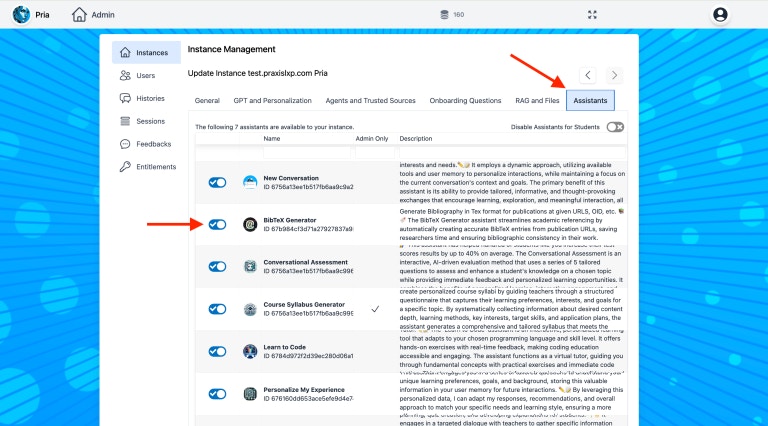
- Name and description
- Status toggle — Enable or disable the assistant for users
- Sharing indicator — Whether the assistant is shared with all users or admin-only
Creating an Assistant
1
Open the Assistants tab
Navigate to the Admin dashboard and select the Assistants tab.
2
Click Add
Click the + Add button to open the assistant editor.
3
Configure the assistant
Fill in the assistant details:
4
Set visibility
Configure who can access the assistant:
- Share with Instance — Available to all users in the instance. When off, the assistant is personal and visible only to its owner.
- Share across Account — Also available to users of every Digital Twin under the same parent account
- Admin Only — Only visible to administrators
- Editable (by others) — Allow non-admin users to modify the assistant’s instructions
When an assistant is first created, restrict it to Admin Only for testing. Once validated, turn Admin Only off to make it available to all users.
5
Save
Click Save to create the assistant. It will appear in the assistant list and, if shared, in the Digital Expert Gallery for users.
Editing Assistants
Click on any assistant in the list to open the editor. You can modify:- Instructions — Update the system prompt to refine behavior
- Model override — Change which AI model this assistant uses
- Variables — Add or edit substitution variables used in the instructions
- Visibility — Change sharing and editability settings
- RAG & Tools — Configure collection scoping and per-assistant tool access
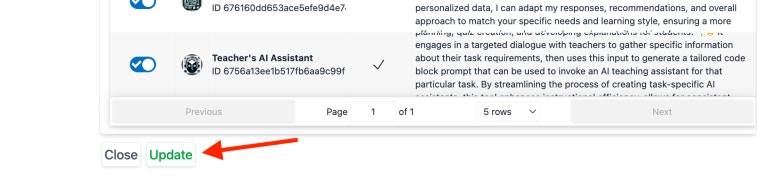
Enabling and Disabling
Toggle an assistant’s status to control availability:- Enabled (blue toggle) — Assistant is active and available to users
- Disabled (gray toggle) — Assistant is hidden from users but preserved in the system
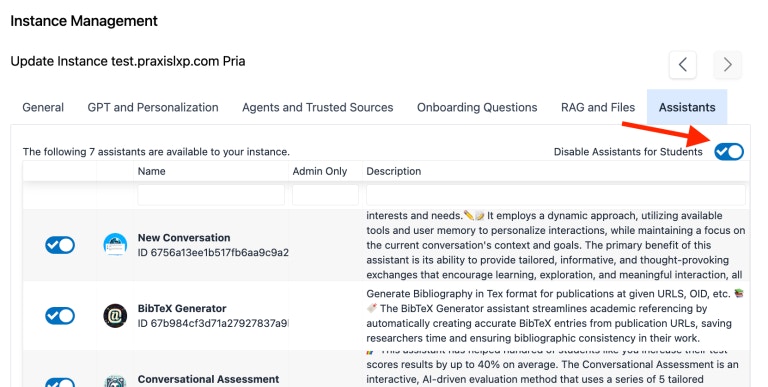
- Temporarily removing an assistant during maintenance
- Hiding seasonal or event-specific assistants when not needed
- Keeping draft assistants saved but not yet available
Variables in Assistants
Assistants support substitution variables — placeholders like${variable_name} that are replaced with dynamic values at runtime.
Common uses:
- API endpoints or webhook URLs
- Quiz IDs or course identifiers
- Reusable instruction snippets shared across assistants
- Sensitive data (API keys, tokens) that should not be embedded in the prompt text
Model Override
By default, assistants use the institution’s configured conversation model. You can override this per assistant to use a different model — for example, a more capable model for complex analysis tasks or a faster model for simple lookups. The model override is set in the assistant editor under the Model field.If a deprecated model is assigned to an assistant, the system will fall back to the institution’s default model automatically.
RAG Collection Scope
By default, assistants search across all selected uploads (documents) in the IP Vault during RAG retrieval. You can optionally restrict an assistant to only search within specific collections — subsets of your uploaded documents.1
Open the assistant editor
Navigate to Assistants and click on the assistant to edit.
2
Go to the RAG & Tools tab
Click the RAG & Tools tab in the assistant editor.
3
Select collections
Use the RAG Collection Scope multi-select dropdown to choose one or more collections. You can select multiple collections — the assistant will search uploads from all selected collections.
- Type to filter collections by name
- Click a collection to add it to the selection
- Click the × on a selected collection tag to remove it
- Leave empty to search all collections (default behavior)
4
Save
Click Save to apply the collection scope.
Collections are managed in the IP Vault. Organize your documents into collections first, then assign relevant collections to each assistant.
Per-Assistant Tool Configuration
By default, assistants have access to all enabled tools for the institution. You can restrict which tools an assistant can use — useful for narrow, specialized assistants where you want to constrain behavior.Tool Mode
Use the Tool Mode dropdown to select how this assistant accesses tools:
When you select Selected Tools Only, a list of all active tools appears. Each tool is shown as a card with its name, description, and a checkbox — only checked tools will be available during conversations with this assistant. Use the Show All / Selected filter to switch between the full tool list and just the tools you have picked.
1
Set Tool Mode to Selected Tools Only
Change the Tool Mode dropdown from “All Tools” to “Selected Tools Only”.
2
Check the tools you want to enable
Browse the tool list and check the checkbox next to each tool this assistant should have access to. Unchecked tools will not be available to the AI during conversations with this assistant.
3
Save
Click Save to apply the tool configuration.
Gallery Integration
Shared assistants appear in the Digital Expert Gallery, where users can browse and select them. The gallery displays:- Assistant name and icon
- Description
- A quick-start button to begin a conversation with the assistant
Required Permissions
Related
- Building Assistants — CRISPE methodology and development lifecycle
- Variables — Substitution variable guide
- Digital Expert Gallery — User-facing assistant selection
- Entitlements — Managing assistant permissions
- AI Models — Model selection and configuration
- Tools Reference — Complete list of available AI tools
- Connector MCP — MCP server integration